Images to PDF

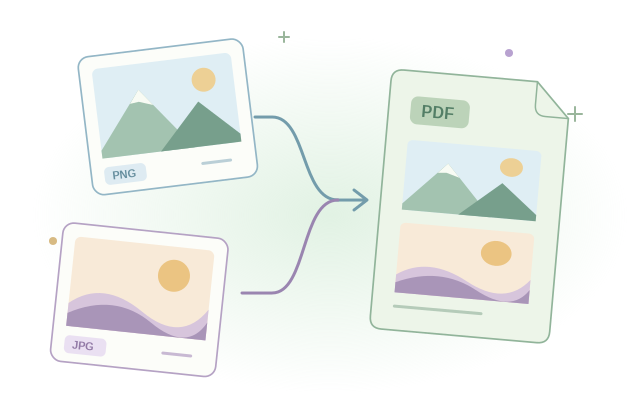
Arrange your images and combine them into one PDF.

JPG, PNG, WebPSimple & FastUp to 20 images100% Private
Drop your images here

or click to browse from your device

Preparing Images to PDF. File selection will be available shortly.JPG, PNG, WebPUp to 20 images100 MB total100 MB total · 40 megapixels per image. Files stay on your device.
A LITTLE HELP, WHEN YOU NEED IT

How to use Images to PDF

Collect photos or scanned images in one PDF. Image order and page settings control how the finished document reads and prints.

  1. Choose JPG, PNG, or WebP images.

  2. Reorder the images and adjust paper size, orientation, and margins.

  3. Create the PDF and check that every image fits on its page.

Fit the page to the purpose

Use a standard paper size for printing or a page that fits the image for digital viewing. Margins add breathing room around the image; they do not recover cropped content.

An image PDF is still an image

Combining photos does not make their text selectable.

Before you save

Use up to 20 images within the file limits. Large images may be resized to a maximum edge of 4096 pixels. Images become page content; this tool does not turn photographed text into editable text.

Common questions

Can I add HEIC photographs?

This tool accepts JPG, PNG and WebP. Export HEIC images to one of those formats on your device first.

Why does a large photograph lose detail?

Large images may be resized to a maximum edge of 4096 pixels. Keep the original photographs when you need their full-resolution data.

THE FULL GUIDEIs your PDF a scan? Choose the right way to work with its text

Where processing happens

Your documents are processed in this browser. The site downloads the resources needed to run the tools, but your selected files are not uploaded for processing. Keep your original and save the result before leaving the workspace. Privacy policy · Report an issue

Unlock this PDF

Enter its password to continue in this tool. Your file and password stay on your device.